SpectralRotator is a VST plugin that can rotate the frequency spectrum of any sound. It is an offline processor, which means it does not work on live audio. Instead, you drop a sample into its UI, rotate its frequency spectrum in any direction, and then drag the result back into the DAW.
Installing this VST is very straightforward. Go to the Releases tab, select the latest release, and simply download the zip file for your platform. You then extract this zip, and put the bundle/folder from the ZIP file into your VST3 folder. On Windows this is usually located somewhere like C:\Program Files\Common Files\VST3.
Start by dropping a sample into the plugin. It will then load the sample, and analyze it to show the frequency spectrum. Once the sample has loaded, you can press the buttons in the top left to rotate the frequency spectrum into any orientation. Once you've rotated your sample, you can drag the result back into your DAW using the little drag icon in the top right. You can modify which part of the sample it will rotate by changing the selection using the start and end markers, or by modifying the start and size numbers in the top-bar. If you right click and drag onto the spectrum you can create a selection as well.
You can also listen to the loaded samples by clicking on the spectrum view, and pressing space bar, or pressing the play/pause button in the top left. You can skip to any position in the sample by clicking anywhere on the spectrum view.
You can zoom into the sample using the scroll wheel, or by holding down the middle mouse button and dragging your mouse around. On top of that, you can adjust what portion is visible by resizing or dragging around the large scrollbar at the bottom of the interface.
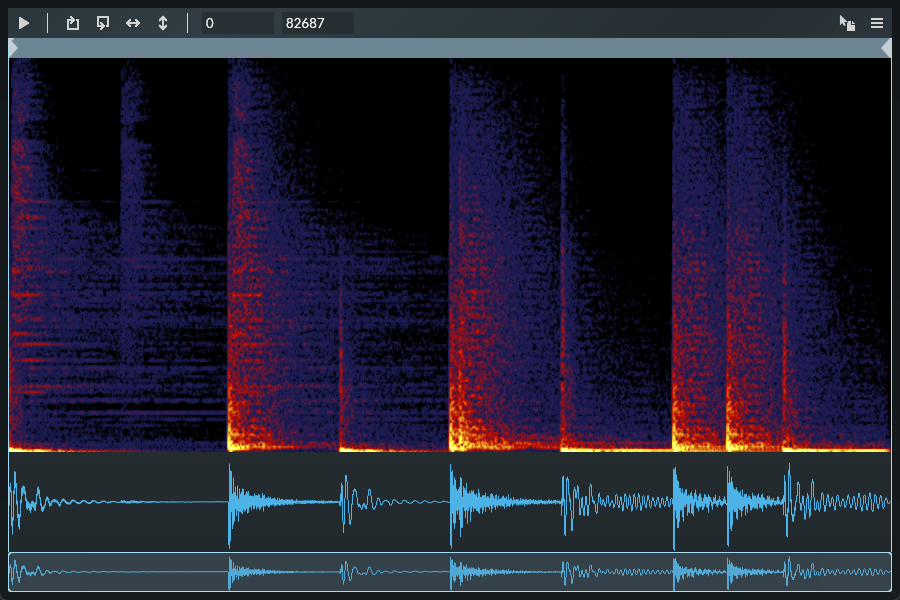
After you've applied effects to your rotated sample, you can drop it back into the plugin. It is important to make sure the selection is the same length as the sample you previously exported, and make sure the selection is properly aligned to the newly imported sample, otherwise you will get some frequency shifting. Once you've made sure the selection is correct, you can rotate it back to its original orientation, and drag it back into your DAW.
Any samples you've dragged out of this plugin are stored in the output folder, which defaults to a folder somewhere in the user's application data directory. You can find the exact path by clicking on the settings icon and looking at the "output folder". You can change this path by clicking on it and selecting a different folder. Clicking on the icon to the right of the path opens the folder in the default file explorer. You can close the settings by clicking on the settings icon again.
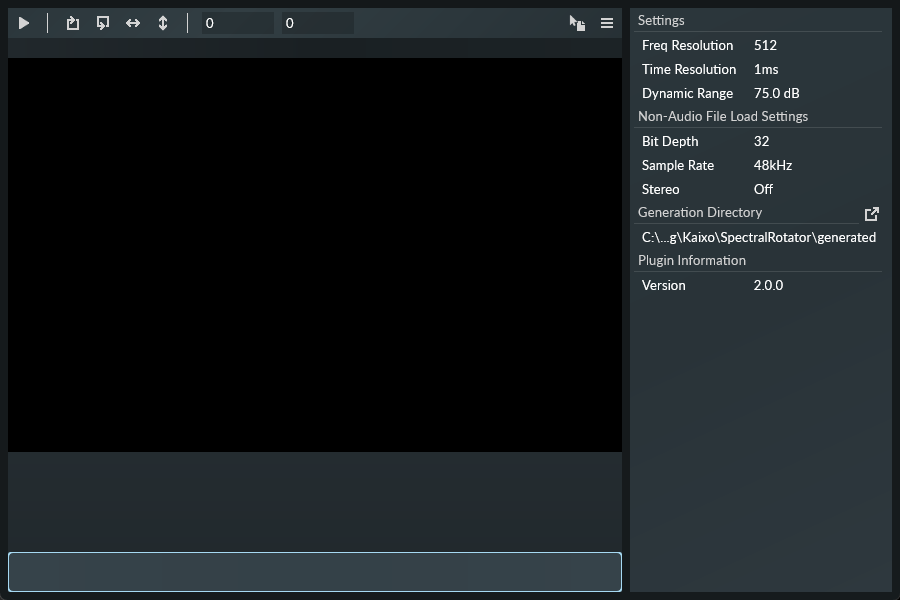
You can open the settings view by clicking on the button with the 3 horizontal lines in the top right of the interface. Here you can adjust the frequency resolution (FFT size), time resolution (distance between FFT blocks), and the dynamic range of the spectrum display.
Additionally, SpectralRotator allows you to import any arbitrary file as a binary stream that gets interpreted as audio. You can modify the bit-rate, sample-rate, and whether to interpret as stereo, in the settings.
When dragging a file out of SpectralRotator, it has to save the file somewhere, by default this is somewhere in your application data folder. But you can modify this by clicking on the path under Generation Directory and selecting a different folder.
If you experience any issues, or have any questions or suggestions about this plugin you can contact me on Discord @kaixo.